 Science On a Sphere
Settings

Use the Settings tab for tasks like updating the Data Catalog, turning projectors off and on, or connecting to the SOS computer.
Connection
Permalink to ConnectionThe Connection section on the Settings tab of the SOS Remote App indicates whether or not the app is connected (either via Wi-Fi or Bluetooth) to the SOS computer. It also shows the Primary and Backup fields where you can input the names or IP addresses of your SOS computers. Use the checkmark to select which SOS computer you want the app to connect to.
If the app is unable to connect, the words Not Connected will be displayed, along with an error message diagnostic to help you troubleshoot the problem. SOS Remote app will keep trying to reconnect to the SOS computer every few seconds.
SOS Data Catalog
Permalink to SOS Data CatalogThe SOS Data Catalog section on the Settings tab indicates the status of the SOS database. The SOS database contains information about the SOS Data Catalog, which is needed for searching and browsing for datasets in the Data Catalog tab.
A red badge with a “!” inside of it indicates that the SOS Data Catalog is out of date on your iPad compared to the version on the SOS computer, and should be updated. To update the catalog, simply tap the Update Now button.
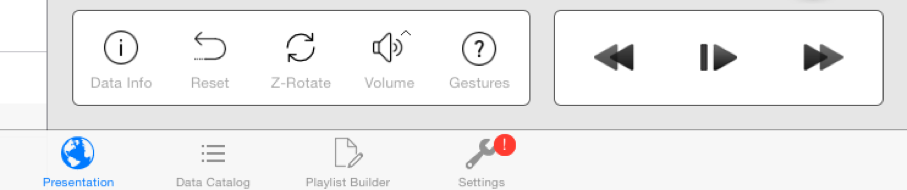
A red badge containing a “!” on the Settings tab means the Data Catalog needs to be updated.
The Data Catalog can take several minutes to get updated. If the update fails and you get an error message, simply try the Update Now button again.
Auto Run
Permalink to Auto RunTo run Science On a Sphere® in automatic presentation mode, tap on the Settings icon located in the tab bar, and then set the ON/OFF switch in the Auto Run section to ON. An Auto Run message box will pop up that will block all controls on the app until the Stop button is pressed on the message box.
Projectors
Permalink to ProjectorsThe controls in the Projectors section allows you to conveniently turn your SOS projectors on or off. Simply tap either the Turn On or Turn Off button.
Default User Position (Degrees)
Permalink to Default User Position (Degrees)By default, the User Position slider on the Presentation page is centered at 0° longitude and extends to -180° and +180° along the equator. 0° longitude usually sits between projectors 3 and 4 (see the SOS room diagram). If a site tends to present datasets to an audience at a room location that does not line up with 0° on the sphere, everytime they load a dataset, they have to orient the dataset first to be in line with where they are positioned.
To make presenting more convenient, you can set a default user position so that datasets always load at the desired rotation around the z-axis (i.e., longitude) in the room. The center of the User Position slider on the Presentation tab will correspond to whatever value you set here.
Alignment
Permalink to AlignmentTo perform alignment of the projectors on the sphere, tap on the Settings icon located in the tab bar and select the Alignment option. The sphere will automatically display a white grid against a red background.
The Alignment interface is divided into three clearly labeled sections (Red Ball, Grid, and Vertex Tweaking) to facilitate greater ease in stepping through the alignment procedure. Please refer to the Alignment Manual for complete information on the alignment controls and how to perform projector alignment.
Setting a Password
Permalink to Setting a PasswordBefore beginning alignment, you may want to set an alignment password to prevent unintended use of the alignment interface. To do this, tap on the Settings icon located in the tab bar and then select Alignment Password to set a password.
Version
Permalink to VersionThis section lists the version number of the app, along with the app’s build number.