 Science On a Sphere
Configuring the App
In order to control Science On a Sphere® from your iPad, you must configure your iPad to communicate with your SOS computer. To get started, tap on the app’s Settings tab. Under the Connection section, enter the host name or IP address of your primary and backup SOS computers in the respective fields. Toggle which computer you want to connect to by tapping on the far right hand side of either the Primary or Backup fields. The checkmark indicates which computer the app will try to connect to.

SOS Remote app settings on iOS.
SOS Remote app will automatically try to initiate a connection between your device and your SOS computer. If a connection has been established, the word Connected will be displayed in the Connection section. If it is unable to connect, the words Not Connected will be displayed, along with an error message to help you troubleshoot the problem. The SOS Remote app will keep trying to reconnect to the SOS computer every few seconds.
If at any point the device is unable to connect to the SOS computer, a red badge with a question mark will automatically appear on top of the Settings tab of the SOS Remote app.
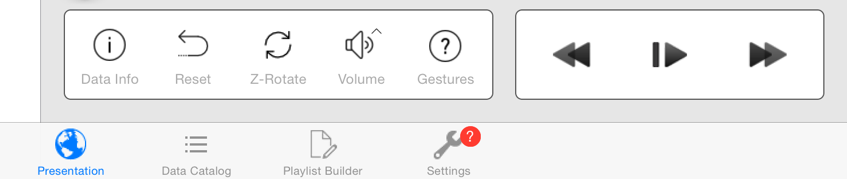
A red badge appears on the app’s Settings tab indicating that it can’t connect to the SOS computer.